 Waitcher
Docs
Open Waitcher
Visual checks
A page can answer 200, pass every assertion and still look broken: a stylesheet that did not load, a banner covering the buy button, a layout that collapsed on phones. A visual check catches that. On a schedule, Waitcher opens one page in a fresh browser, takes a screenshot of the viewport or of one element, and compares it pixel by pixel with a screenshot you approved. A difference over your tolerance fails the run, with the old image, the new one and the difference kept as evidence.
| A browser check | A visual check | |
|---|---|---|
| What you write | A test with steps and assertions | A few lines of JSON: the page, the viewport, what to ignore |
| What it proves | A journey works | A page looks the way you approved it |
| What breaks it | A changed element, flow or reply | Any visible change, including ones no assertion names |
| Evidence | Report, trace, screenshots | Baseline, new capture, difference image and its numbers |
How a run works
- Waitcher starts a fresh, single-use sandbox (a microVM on Cloudflare) with a pinned Chromium.
- It opens your page at a fixed viewport (desktop 1280x800 or mobile 390x844), in light mode with reduced motion, waits for load, fonts and your ready selector, stops animations and hides the text caret.
- It paints your masks gray and captures the viewport or the one element you chose.
- It compares the capture with the approved baseline and passes when the share of changed pixels stays within your tolerance. Content that arrives late gets up to 10 seconds to settle before a difference counts.
- The sandbox is destroyed. Every run keeps its comparison: the baseline, the capture and how much differed. A failed run also keeps the difference image.
Underneath, a visual check is a small browser test that Waitcher writes from your settings and runs with the same e2e framework as your own tests. It uses the framework's toHaveScreenshot, which you can also call yourself inside a journey (below).
A visual check has no script, no sign-in and no custom headers: it sees what an anonymous visitor sees on a public HTTPS page.
Set one up
In waitcher.json, a visual entry needs only a key and a page:
{ "key": "home-look", "type": "visual", "path": "/" }
That captures the desktop viewport of the environment's baseUrl every 30 minutes (every 2 hours on the free plan, see limits). Add a visual block to change what is captured:
{
  "key": "pricing-mobile",
  "type": "visual",
  "path": "/pricing",
  "interval": 7200,
  "visual": {
    "checkpoint": { "kind": "element", "selector": "main" },
    "viewport": "mobile",
    "ready": { "selector": "main h1" },
    "masks": ["[data-testid=visitor-count]", ".carousel"],
    "thresholds": { "maxDiffRatio": 0.002 }
  }
}
Deploy it like any other monitor (Repository workflow):
waitcher deploy plan --env production
waitcher deploy apply --env production --based-on BASED_ON --smoke
For one check outside a repository, waitcher monitor init --type visual --target https://example.com/ --file visual.json writes a complete paused example for monitor apply.
Create the first baseline
A new visual monitor has nothing to compare with. Scheduled runs never create a baseline on their own: until one exists, a run ends as error with "First capture of main-web-linux: approve it as the baseline to start comparing". That is missing coverage, not a failure, and it opens no incident. There are two ways to set the baseline:
Capture and approve in one step. Start a run that updates the baseline. It takes the capture and makes it the approved baseline:
waitcher run start --id MONITOR_ID --update-baselines --wait
waitcher visual list --monitor-id MONITOR_ID
waitcher visual image --id COMPARISON_ID --role candidate --file ./private/baseline.png
waitcher monitor resume --id MONITOR_ID
In the web app this is Run and update baseline in the monitor's details. Look at the image afterwards; if it is wrong (a cookie banner, a half-loaded page), fix the settings and update again.
Look first, then approve. Run the check normally, inspect the first capture and approve it:
waitcher run start --id MONITOR_ID --wait
waitcher visual list --monitor-id MONITOR_ID
waitcher visual image --id COMPARISON_ID --role candidate --file ./private/first.png
waitcher visual approve --id COMPARISON_ID --expected-revision 0
In the web app, the run's report shows the capture, what to check in it, and Approve and start the schedule. With deploy apply --smoke, a first capture is reported as baseline_review with these commands.
From then on every run compares against that baseline and keeps the comparison: the baseline, the capture and how much differed, for passing runs too.
When a run fails
A failed visual run means the page changed more than your tolerance allows. Read what changed before deciding:
waitcher visual get --id COMPARISON_ID          # changed pixels and their share
waitcher visual image --id COMPARISON_ID --role diff --file ./private/diff.png
waitcher visual image --id COMPARISON_ID --role original --file ./private/before.png
In the web app, the run's report in the monitor's details shows how much changed against what you allow, the baseline, the new capture and the difference image, and the changed share of recent runs. 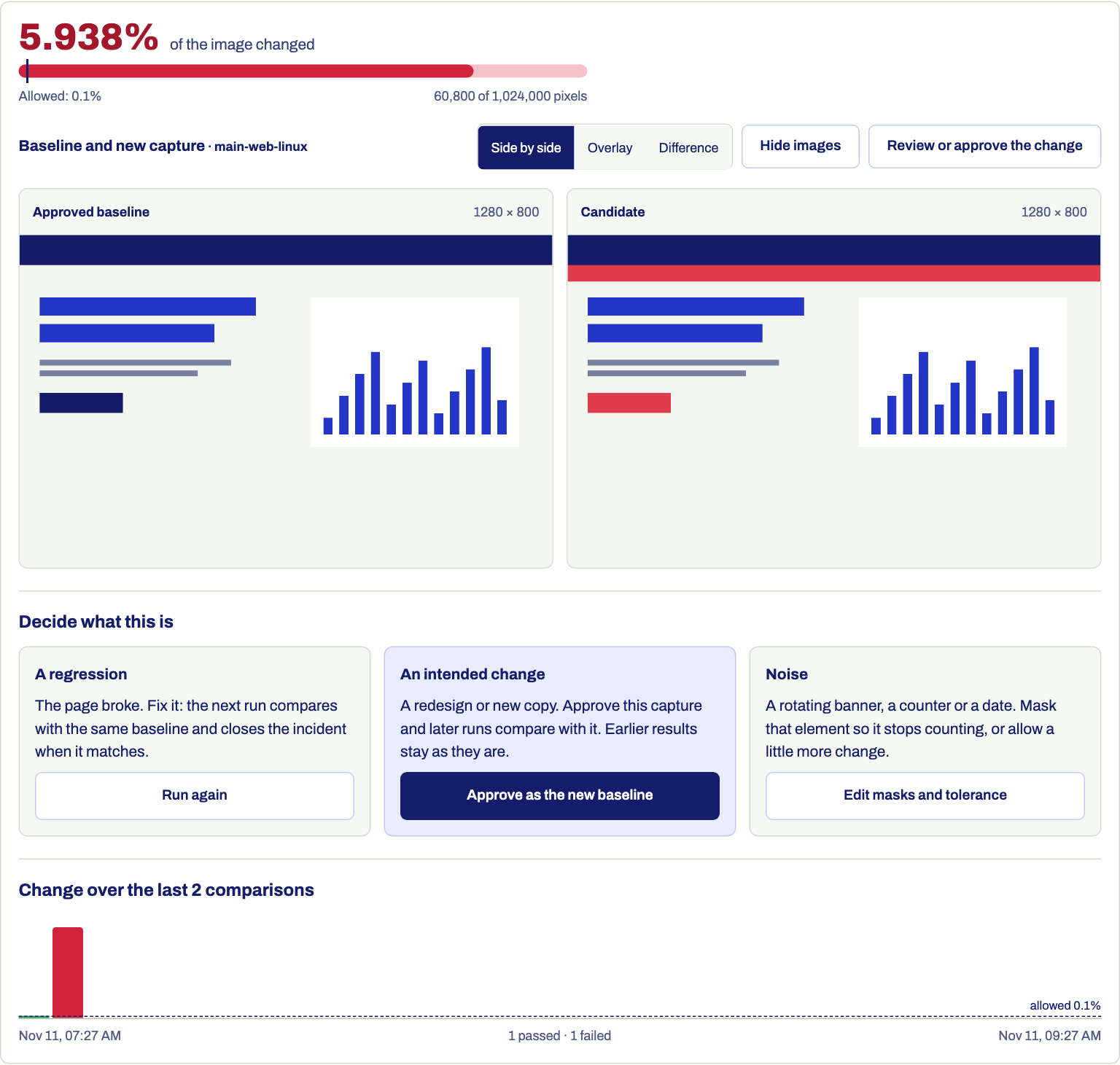
Under the images it names the three things a change can be, each with its next step: Run again, Approve as the new baseline, or Edit masks and tolerance. Compare images opens the latest report. The Visual screen shows the same and is where you restore an earlier baseline.
- The change is a regression. Fix the page. The next run passes against the same baseline and resolves the incident.
- The change is intended (a redesign, new copy). Either approve the capture of the failed run with
waitcher visual approve --id COMPARISON_ID --expected-revision N(the revision the comparison shows, or Approve in the web app), or take a fresh one withwaitcher run start --id MONITOR_ID --update-baselines --wait(Run and update baseline). Neither rewrites earlier results. - The page is noisy (a rotating banner, a counter, a date). Add a mask for that element, or raise
maxDiffRatioa little. The baseline stays when you change settings: a new mask or another viewport shows up as a difference on the next run, which you approve.
Adopting an existing visual monitor into a project (deploy plan --adopt) starts it without a baseline: update the baseline once after the deploy.
waitcher visual restore returns to an earlier approved baseline. Stale approvals are refused with a conflict; reload and decide again instead of retrying.
Screenshots inside a browser test
A visual check sees one public page as an anonymous visitor. To compare a screen that needs a sign-in or a few clicks first, assert it inside a browser test with the framework's toHaveScreenshot:
import { test, expect } from "e2e";

test("dashboard looks right", async ({ app, screen }) => {
  await app.open("/login");
  // ... sign in, open the dashboard ...
  await expect(screen).toHaveScreenshot("dashboard.png");
  await expect(screen.getByRole("navigation")).toHaveScreenshot("nav.png", {
    maxDiffPixelRatio: 0.01,
    mask: [screen.getByTestId("last-updated")],
  });
});
The viewport, masks and tolerance are the test's own; the framework's options are threshold, maxDiffPixels, maxDiffPixelRatio, mask and maskColor. Deploy the test as an ordinary browser monitor. Waitcher keeps the baselines, so there are no PNG files to commit:
- First baseline. As for a visual check:
waitcher run start --id MONITOR_ID --update-baselines --waitcaptures and approves it, or run normally and approve the first capture ("First capture of dashboard-web-linux: approve it as the baseline to start comparing"). The test stops at a screenshot that has no baseline or differs, so each run settles one screenshot: a test with three new screenshots needs three runs. - Later runs. Every run starts with the approved images. A screenshot that differs fails the run, and its report shows the baseline, the new capture and the difference; approve it, or update the baseline with a new run, if the change is intended. Unlike a visual check, a passing browser test stores no image of its screenshots: the framework keeps none when they match.
- Locally.
waitcher run localand--verifyhave no baseline, so each stored screenshot is compared with a capture taken moments earlier in the same run. That checks the journey to its end, not the look.
A monitor keeps up to 10 stored screenshots, 12 MiB together. Baselines follow the screenshot's name: renaming it in the test starts a new one. These runs are ordinary browser runs for your plan.
Settings
| Field | Values | Default |
|---|---|---|
checkpoint | { "kind": "page" } for the viewport (no full-page scrolling), or { "kind": "element", "selector": CSS } for one element | Page |
viewport | desktop (1280x800) or mobile (390x844) | desktop |
locale | en-US or pl-PL | en-US |
timezone | UTC, Europe/Warsaw or America/New_York | UTC |
ready.selector | An element that must be visible before the capture | body |
masks | Up to 10 CSS selectors painted gray, 50 elements in total | None |
captureBudgetMs | 5,000 to 45,000 | 30,000 |
thresholds.pixelThreshold | 0 to 1: how different one pixel must be to count | 0.1 |
thresholds.maxDiffRatio | 0 to 0.1: the share of changed pixels a run may have and still pass | 0.001 |
Selectors must match: a checkpoint or ready selector that matches no element or several, or a mask that matches nothing, ends the run as error without a comparison. A capture of a different size than its baseline fails.
Limits
- The target is a public HTTPS page on port 443, without credentials, query string or fragment.
- A visual monitor counts as one of your plan's script monitors, and each capture as one of its script runs a day (Monitors). It runs every 30 minutes at most, and no more often than your plan's script interval (2 hours on the free plan).
- The timeout is at most 60 seconds and must cover the capture budget plus 5 seconds.
- An
error(the page did not load in time, a selector did not match, nothing approved yet) opens no incident on its own; a real differencefailedrun does, after yourfailureThreshold. - When Waitcher updates its browser, rendering can shift by a few pixels. A run then fails with that difference and you approve the new capture.
- Screenshots are private evidence, kept as long as your plan keeps evidence. Approved baselines stay, the last five versions of each, until you release them or delete the monitor. Masks hide pixels in the image only, so do not point a visual check at a page that shows data you would not store.
- A visual check itself does not sign in; for pages behind a sign-in use a screenshot inside a browser test, above. Not covered yet: full-page scrolling captures, dark mode and other browsers.